> ## Documentation Index
> Fetch the complete documentation index at: https://planmyrounds.com/docs/llms.txt
> Use this file to discover all available pages before exploring further.
# Link or unlink accounts
> Connect a doctor profile to a member account so that person sees their own shifts and leave after signing in — or remove the connection when things change.
Linking connects a doctor profile to the member account of the same person. Once linked, they sign in and see their own shifts, leave history, and scheduling preferences — instead of a generic organisation view.
Only admins can link or unlink accounts. The doctor themselves cannot do this.
Not sure why this matters? See [Staff profiles and user accounts](/docs/team/staff-profiles-and-user-accounts).
## Before you link
The person needs a PlanMyRounds member account before you can link it to their doctor profile. If they haven't accepted an invitation yet, [invite them first](/docs/team/inviting-a-member) — they won't appear in the search until they do.
## Link an account
Go to **Doctors** in the sidebar.
Find the doctor and open their profile.
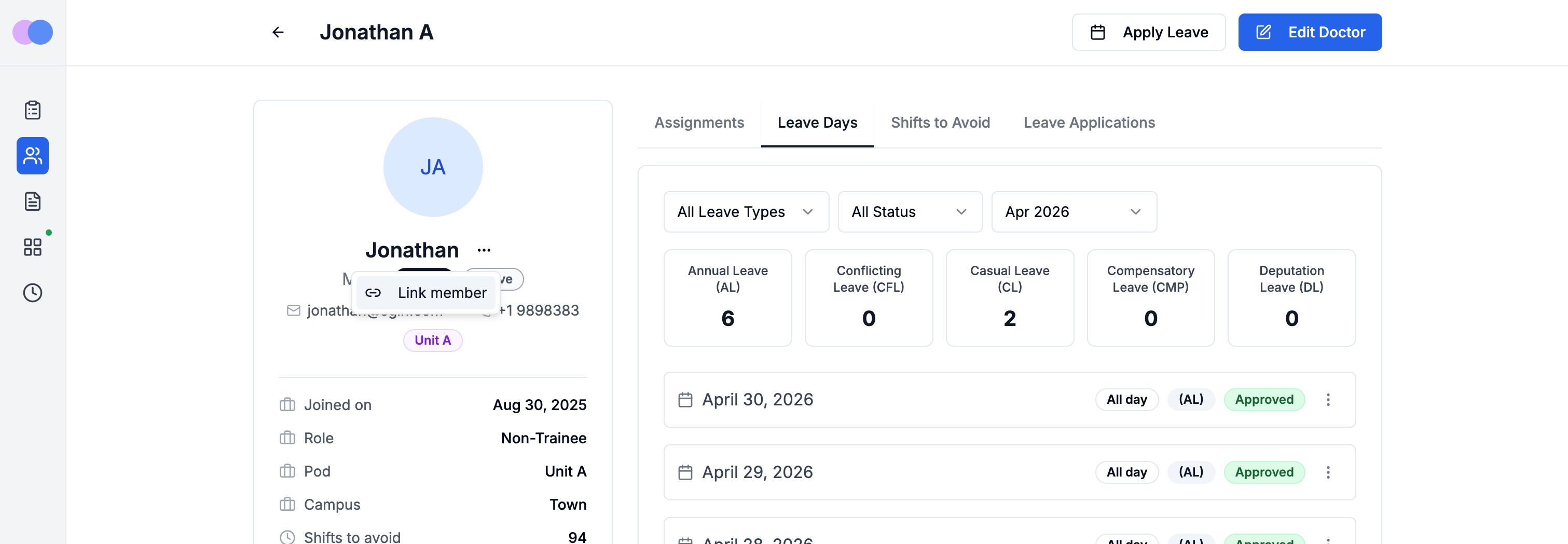
Select the three-dot menu in the profile header.
Choose **Link member**. Search by name or email — only unlinked member accounts appear in the results.
Select the correct person and click **Link**. The profile now shows their name and email, and they'll see their personalised schedule the next time they sign in.
 ## Unlink an account
Unlinking removes the connection between the doctor profile and the member account. Both continue to exist — no data is deleted, and past rosters are unaffected.
Go to **Doctors** in the sidebar.
Find the doctor and open their profile.
Select the three-dot menu in the profile header.
Choose **Unlink member** and confirm in the dialog.
After unlinking, the doctor profile becomes a standalone record again. The member can still sign in, and the profile can still be used in rosters and leave management. You can re-link either to a different account at any time.
Unlinking does not delete either record — it only removes the connection between them.
## What happens when a member is deactivated
Deactivating a member account automatically marks their linked doctor profile as **Inactive**, removing them from future roster generation. Reactivating the member account restores the profile to active.
For the full deactivation flow, see [Deactivating or removing a member](/docs/team/removing-a-user).
## Unlink an account
Unlinking removes the connection between the doctor profile and the member account. Both continue to exist — no data is deleted, and past rosters are unaffected.
Go to **Doctors** in the sidebar.
Find the doctor and open their profile.
Select the three-dot menu in the profile header.
Choose **Unlink member** and confirm in the dialog.
After unlinking, the doctor profile becomes a standalone record again. The member can still sign in, and the profile can still be used in rosters and leave management. You can re-link either to a different account at any time.
Unlinking does not delete either record — it only removes the connection between them.
## What happens when a member is deactivated
Deactivating a member account automatically marks their linked doctor profile as **Inactive**, removing them from future roster generation. Reactivating the member account restores the profile to active.
For the full deactivation flow, see [Deactivating or removing a member](/docs/team/removing-a-user).