
Only admins can link or unlink accounts. The doctor themselves cannot do this.
Before you link
The person needs a PlanMyRounds member account before you can link it to their doctor profile. If they haven’t accepted an invitation yet, invite them first — they won’t appear in the search until they do.Link an account
1
Open Doctors
Go to Doctors in the sidebar.
1
Open the profile
Find the doctor and open their profile.
1
Open the menu
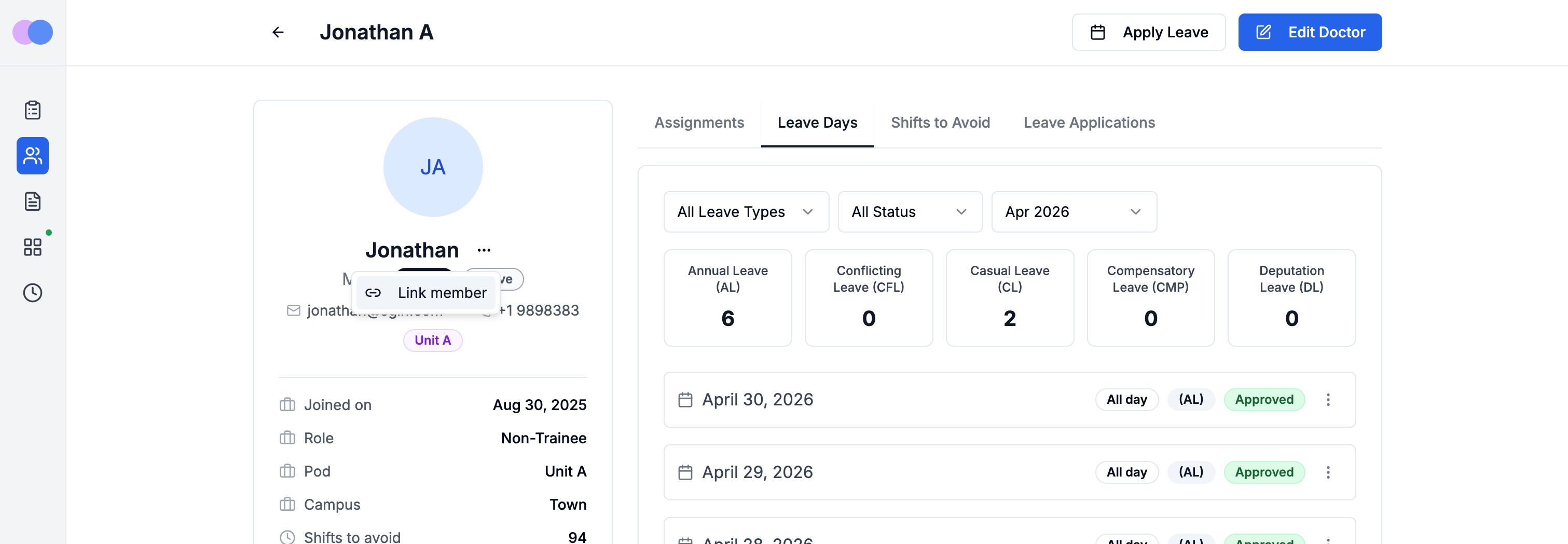
Select the three-dot menu in the profile header.
1
Select Link member
Choose Link member. Search by name or email — only unlinked member accounts appear in the results.
1
Confirm
Select the correct person and click Link. The profile now shows their name and email, and they’ll see their personalised schedule the next time they sign in.
Unlink an account
Unlinking removes the connection between the doctor profile and the member account. Both continue to exist — no data is deleted, and past rosters are unaffected.1
Open Doctors
Go to Doctors in the sidebar.
1
Open the profile
Find the doctor and open their profile.
1
Open the menu
Select the three-dot menu in the profile header.
1
Select Unlink member
Choose Unlink member and confirm in the dialog.